Diese Seite gibt es noch nicht auf Deutsch. Bis dahin siehst du sie auf Englisch.
Did your agency send you a trip with Viaondo?
Your trip opens like an app on your phone: there's nothing to download from an app store and no account to create. Here's how to open it, keep it handy and use it offline.
Open your trip
Your agency sends you a private link, for example by WhatsApp, by email or as a QR code. It can be a link for the whole group or a personal one, just for you, with your own documents and seats. Treat it like a key: don't post it or forward it to anyone who isn't traveling with you.
1Tap the link your agency sent you. The trip opens in your phone's browser.
2Keep it open for a moment while you're online. The first time, the trip saves itself on your phone, with the itinerary, addresses and documents. If it's very large, the app asks you first.
3The app checks the saved copy before telling you it's ready. When you see “Available offline”, you can use it without a signal.
4If you'd like to open it with one tap, add it to your Home screen.
Add it to your Home screen
That way you open it with one tap, like any other app, even offline. The app itself shows you the steps, and if you need them later, you'll find them in Settings under “Install the app”.
iPhone and iPad (Safari)
Open the trip link in Safari.
Tap the Share button. In some versions it's inside the “…” menu.
Choose “Add to Home Screen” and confirm with “Add”.
Open the trip from the new icon. It will be saved again for offline use.
Android (Chrome)
Open the trip link in Chrome.
Tap Chrome's ⋮ menu.
Choose “Install app” or “Add to Home screen” and confirm.
Open the trip from the new icon on your Home screen.
Did your agency send you a trip with Viaondo?
Offline
Once you've opened it with a connection, the trip stays saved on your phone and works without a signal, in airplane mode or abroad without data.
Works offline: the day-by-day itinerary, addresses, documents (boarding passes, vouchers, insurance) and the “Before you go” list.
Needs a connection: the street map and receiving the changes your agency publishes.
In Settings, under “Offline copy”, you can see when the trip was saved and how much space it uses.
When your agency changes something
If your agency publishes a new version of the trip, the app lets you know and shows you what changed, before and after. When you tap “Update the trip”, it downloads the new version, checks it and replaces the saved copy.
You decide when to update the offline copy.
Your agency can also let you know by email, in your language.
Local times
Every time is shown in the local time of its place, with the name of its time zone. If a flight leaves Madrid and lands in Tokyo, you'll see the departure in Madrid time and the arrival in Tokyo time.
Your privacy
Your agency organizes your trip, and it can see basic trip activity, such as when the trip is opened, whether it has been saved offline or which documents are viewed.
Your location and device data are not recorded.
The app has no ads and no third-party trackers.
With a group link, that activity is anonymous; with a personal link, it shows your name.
The app is shown in the language of your trip. If you prefer another one, change it in Settings: Spanish, English, Portuguese (Brazil), French, Italian or German.
The trip content, such as descriptions and recommendations, is written by your agency in the language it chose for you.
Frequently asked questions
I can't open the link
If you see “This link is no longer available”, your agency has turned it off or replaced it with a new one, or the trip is no longer published. Ask them for the current link. If you're offline and the trip wasn't saved on your phone yet, connect and open it again.
Do I need to create an account?
No. Your agency's link is all you need: no username, no password and nothing to download from an app store.
How do I know the trip is saved offline?
Open Settings and look at “Offline copy”: you'll see when it was saved and how much space it uses. If it isn't saved yet, tap “Save for offline use” while you're online.
How do I delete the trip from my phone?
In the app, open Settings and, under “Offline copy”, tap “Delete the copy from this device”. The trip stays available online at the same link. If you added it to your Home screen, remove the icon too, as you would with any app.
Who can see my data?
Your agency, which organizes your trip and is responsible for your data. Viaondo processes it on your agency's behalf so the app works. If you have questions about your data, ask your agency.
Try the sample app
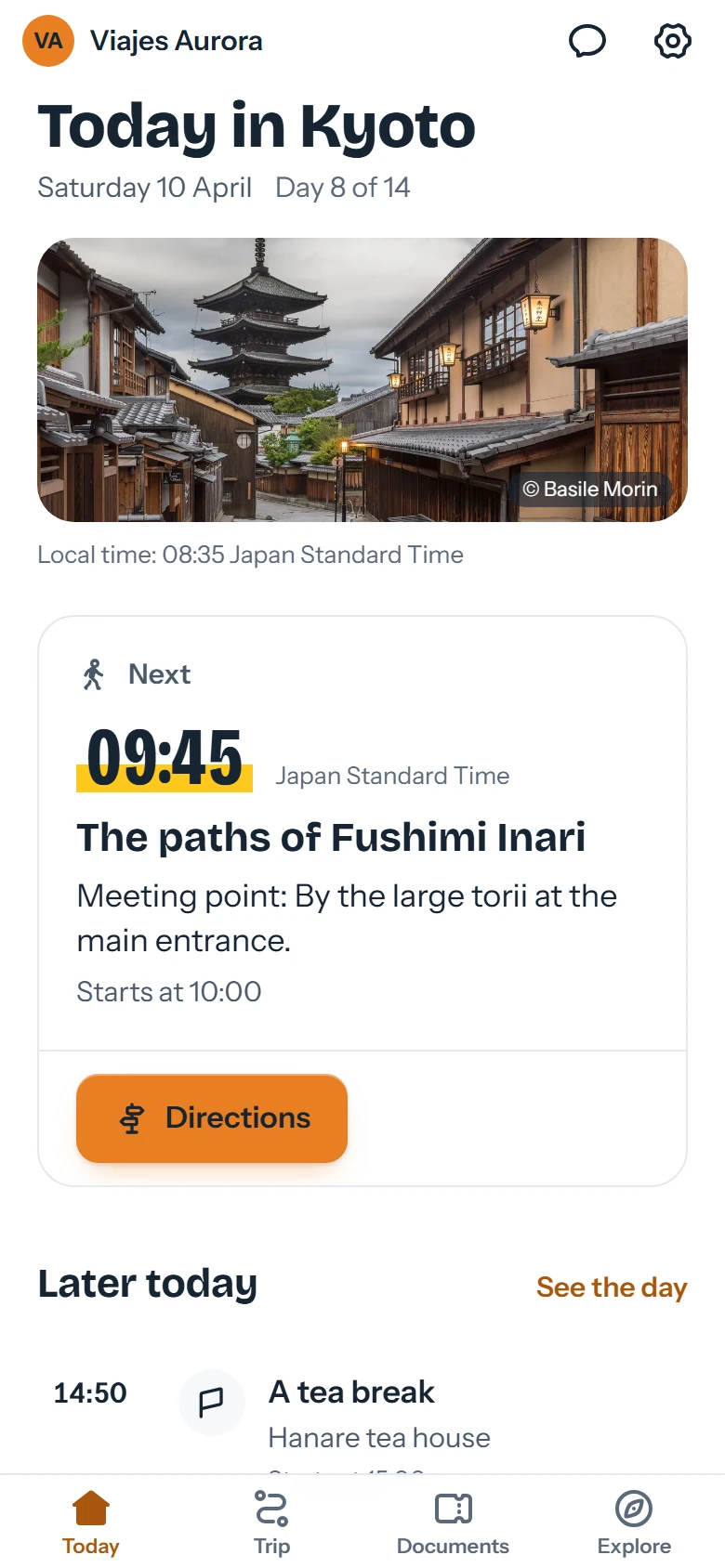
Open “Japan at your own pace”, a sample trip from the fictional agency Viajes Aurora, and see how it works before you open yours. The demo doesn't send any data.